
10 Tips for Choosing an Industrial Touchscreen

Choosing an Industrial Touchscreen is a practical engineering decision, not a simple screen purchase. In a factory, the panel may face oil mist, metal dust, vibration, gloves, and constant cleaning. A display that looks impressive in a showroom can fail beside a stamping press. Real selection begins with the worksite. Operators need clear images under uneven lighting, reliable touch response, and controls that remain usable during long shifts. Small details matter. A wet finger can change everything.

This guide presents 10 tips based on common industrial design and maintenance considerations. It examines protection ratings, panel materials, brightness, viewing angles, touch technologies, operating temperature, mounting, connectivity, and serviceability. It also considers the computer or controller behind the panel. A strong touchscreen cannot repair unstable software or poor wiring. Specifications should be checked against test reports, datasheets, and actual site conditions. Vendor experience matters, but marketing language is not evidence. Ask for operating limits, cleaning guidance, warranty terms, and replacement plans.

There is no universal best model. A food-processing line may need a sealed stainless enclosure, while a warehouse terminal may prioritize impact resistance and glove operation. Cost deserves attention, yet the cheapest unit can create expensive downtime. I have seen decisions improve when teams observe operators using sample hardware for a full shift. That test may reveal glare, awkward mounting, or tiring gestures. No checklist is perfect. Revisit assumptions before approval, especially when temperature, chemicals, or vibration exceed normal expectations. The right Industrial Touchscreen should fit the process, people, and maintenance reality—not merely the product brochure.
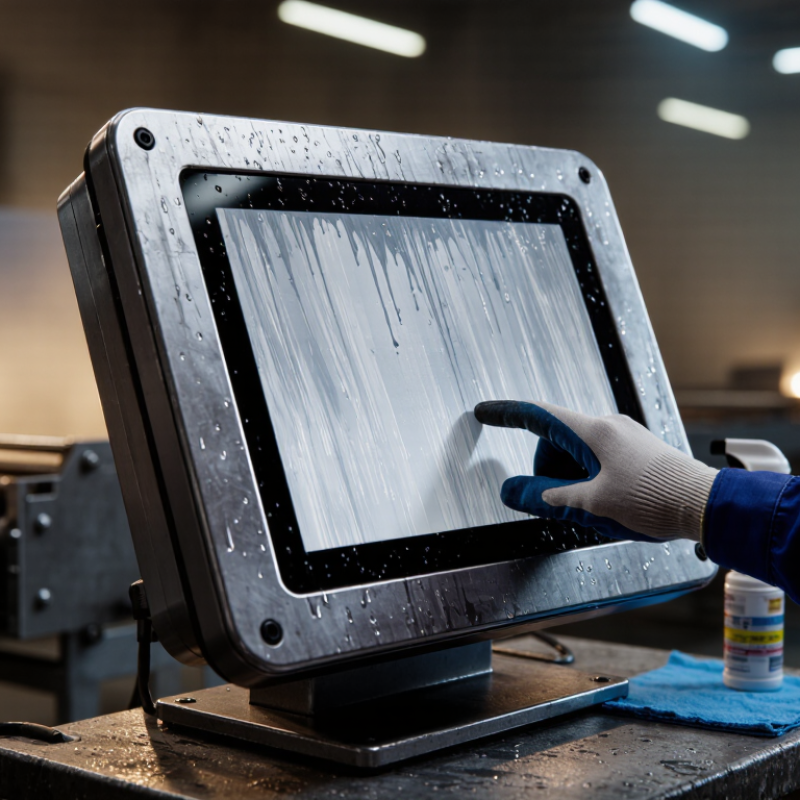
10 Tips for Choosing an Industrial Touchscreen

Define the Industrial Environment and Touchscreen Application

Define the industrial environment and touchscreen application before comparing glass, resolution, or price. In a robot cell, the panel may face oil mist, vibration, gloves, and bright overhead lighting. On a packaging line, washdown pressure and disinfectant exposure may matter more. World Robotics 2024 recorded 541,302 industrial robot installations worldwide in 2023. That figure reflects the growing need for clear operator interfaces near automated equipment. Map the exact task. Will operators enter recipes, acknowledge alarms, or monitor production trends? Each task changes the required screen size, touch technology, and response speed. Small details matter.

Record temperature swings, humidity, dust, chemical contact, impact risks, and cleaning methods. IEC 60529 IP ratings describe protection against solids and water, but they do not guarantee resistance to every chemical. A high IP rating alone is not enough. Gloved operators may need projected capacitive touch, while heavy gloves or wet hands may require another sensing method. Check viewing angles under actual factory lighting, not only in a showroom. International safety and usability data also support practical testing: the International Federation of Robotics reported more than half a million industrial robot installations in 2023. Interfaces must therefore support fast, safe decisions beside moving equipment. I would still recheck every specification during a site trial. Engineers sometimes overvalue resolution and underestimate cleaning, glare, or cable access. That assumption can fail.

10 Tips for Choosing an Industrial Touchscreen: Define the Industrial Environment and Touchscreen Application

Typical ingress-protection targets for touchscreen applications in different industrial environments. The first digit represents protection against solid particles, while the second digit represents protection against water.

IP54 protects against dust-limited entry and water splashes; IP65 is dust-tight and protected against water jets; IP66 is dust-tight and protected against powerful water jets. Confirm the final rating against temperature, chemicals, vibration, cleaning methods, and installation conditions.

Assess Display Size, Resolution, Brightness, and Viewing Angle

10 Tips for Choosing an Industrial Touchscreen

Assess Display Size, Resolution, Brightness, and Viewing Angle

Display size should match the operator’s task, not simply the available panel space. A compact screen can suit machine controls with large, clear buttons. A larger display helps when technicians monitor charts, alarms, and several data fields simultaneously. Measure the viewing distance before choosing. I once selected a screen that looked generous on a desk but felt cramped behind protective equipment.

Resolution affects more than image sharpness. It determines how much information fits without making labels difficult to read. For industrial interfaces, text must remain legible under vibration, dust, and rushed working conditions. A very high resolution may waste budget if the software uses oversized controls. Test the actual interface, not only the specification sheet.

Brightness deserves an on-site check. Indoor lighting, sunlight through windows, and reflective covers can change visibility quickly. A bright screen with a matte surface often performs better than a dim display with strong reflections. However, excessive brightness can cause eye strain in dark rooms. Viewing angle is equally practical. Operators may stand, lean, or work from either side of a cabinet. Check color stability and contrast from those positions. Numbers can mislead. A controlled showroom test is useful, but real production lighting may expose weaknesses later.

Choose the Right Touch Technology for Industrial Operations

10 Tips for Choosing an Industrial Touchscreen

Choose the Right Touch Technology for Industrial Operations

Start with the operator’s real environment, not a showroom demonstration. Identify whether workers use bare fingers, gloves, tools, or wet hands. Gloves change everything. Choose projected capacitive touch for precise control when operators wear thin gloves. Consider resistive touch when workers need pressure, thick gloves, or a stylus. Infrared touch can suit larger displays, but dust may interrupt its sensing grid. Dust matters.

Check the enclosure rating for water, oil, and cleaning chemicals. Confirm the operating temperature range beside ovens, freezers, or outdoor equipment. Review vibration resistance near motors and presses. Select a screen with readable brightness under direct factory lighting. Test viewing angles from standing and seated positions. Check whether the surface reduces glare without weakening touch accuracy. Confirm that the panel supports the required interface and control software. Inspect mounting options before ordering. Test before ordering.

Ask for lifecycle information, calibration procedures, and replacement availability. A touchscreen that works today may become expensive if spare parts disappear. I once saw a technically excellent panel fail because its cable connector sat directly beneath a moving arm. The specification sheet missed that detail. It is also wise to test the unit with actual gloves, cleaning routines, and production noise. Do not rely only on laboratory results. Some choices remain uncertain until operators use the screen for a full shift. Record their complaints, especially slow responses and accidental touches, then adjust the technology or layout before installation.

Evaluate Durability, Protection Ratings, and Operating Temperature

10 Tips for Choosing an Industrial Touchscreen

In industrial environments, a touchscreen becomes part of the work surface. It faces vibration, dust, impact, moisture, and repeated contact. During site inspections, I check the enclosure, mounting points, and cable exits before studying screen resolution.

Look beyond a thick bezel. The panel should resist scratches, pressure, and accidental knocks from tools. A sealed, rigid housing usually performs better near pumps, conveyors, and production lines. Confirm that the surface works with gloves and remains readable under changing light.

Protection ratings provide useful evidence, but they need careful interpretation. An IP65 rating, defined under IEC 60529, indicates protection against dust and water jets. It does not automatically prove resistance to chemicals, high-pressure washing, or corrosive vapors.

Ask how the touchscreen was tested. Check the seals, connectors, and cable glands as one system. A weak cable entry can undermine an otherwise strong enclosure. I have seen maintenance teams focus on the front panel and overlook condensation behind it.

Operating temperature deserves equal attention.

Review both the rated range and the expected startup conditions. Cold mornings can slow touch response, while enclosed cabinets may trap damaging heat. Direct sunlight adds another thermal load.

Thermal cycling matters too. Repeated movement between cold storage and warm production areas can stress seals and electronics. An internal heater or cooling method may help, but it also adds failure points. My own checklists have missed airflow restrictions before, so I now inspect cabinet spacing and record real temperature readings during operation.

Verify Connectivity, Compatibility, Installation, and Long-Term Support

10 Tips for Choosing an Industrial Touchscreen

Verify Connectivity, Compatibility, Installation, and Long-Term Support

An industrial touchscreen must communicate reliably with every connected device. Check Ethernet, serial, USB, and wireless options before approving the unit. Confirm supported protocols, data rates, and connector locations. A crowded control cabinet can make one awkward port nearly useless. Ask whether the screen works with your PLC, sensors, software, and existing network security rules. Test it with actual gloves, not just bare fingers. Moisture, dust, sunlight, and vibration can change performance quickly. Small details matter.

Compatibility also includes power requirements, operating systems, display resolution, and panel cutout dimensions. Measure the installation space twice. I once trusted an old drawing and found the mounting depth blocked a cable channel. That mistake delayed commissioning. Consider touch response through gloves and whether operators can read the display at different angles. Review firmware updates, repair procedures, spare-part availability, and technical documentation. Long-term support should be written clearly, including product lifecycle notices and warranty conditions. A low purchase price may become expensive when replacement parts disappear. Ask for a realistic service timeline. Do not assume every update improves stability. Test changes in a controlled environment before deploying them across the plant. Industry conditions are rarely perfect. Your selection process should acknowledge that.

10 Tips for Choosing an Industrial Touchscreen - Verify Connectivity, Compatibility, Installation, and Long-Term Support

Tip Selection Dimension Recommended Data or Requirement What to Verify Before Purchase Why It Matters
1 Display Size and Resolution Select the screen size according to viewing distance and available panel space. Common industrial formats include 7 in 10.1 in 12.1 in 15.6 in with resolutions from 1024 × 600 to 1920 × 1080 pixels. Confirm the active display area, aspect ratio, pixel resolution, viewing distance, and whether the user interface is readable at the intended operating position. Check the panel cutout dimensions rather than relying only on the diagonal size. An unsuitable size or resolution can cause poor readability, excessive scrolling, or mechanical interference with the control cabinet.
2 Touch Technology and Usability Projected capacitive touch is suitable for multi-touch and gloved operation when properly configured. Resistive touch is often practical for stylus use, heavy gloves, or environments where accidental contact must be minimized. Test the actual glove material and thickness, required touch force, wet-finger performance, multi-touch requirements, calibration process, and compatibility with protective overlays or safety glass. A touch panel that works in a showroom may fail when operators wear gloves, use tools, or interact with the screen while moisture or contaminants are present.
3 Connectivity and Signal Interfaces Match the monitor to the host system using the required video and touch interfaces, such as HDMI DisplayPort DVI VGA USB RS-232. Confirm video connector type, supported resolution and refresh rate, touch-data interface, cable length limits, USB version, serial pin assignment, connector orientation, and whether signal conversion is required. Video output and touch input are separate functions on many industrial displays. A compatible video cable alone does not guarantee touch operation.
4 Operating System and Software Compatibility Require documented support for the intended operating system and driver model. Standard USB HID touch devices can reduce driver dependency, while serial touch interfaces generally require a specific driver or software configuration. Test the display on the exact operating-system version, including kiosk mode, multi-monitor operation, touch calibration, screen rotation, sleep/wake behavior, and system restart recovery. Unsupported drivers can prevent touch input, cause incorrect calibration, or create failures after operating-system updates.
5 Environmental Protection Choose an enclosure rating appropriate to the installation. For example, an IP65 front rating indicates protection against dust ingress and water jets from the front when tested under IEC 60529 conditions. Check whether the rating applies to the complete installed assembly or only the front bezel. Verify gasket design, connector sealing, cabinet drainage, cleaning chemicals, humidity limits, and the required IEC 60529 test rating. A front-panel rating does not automatically protect rear connectors, cable joints, or the control cabinet interior.
6 Temperature, Shock, and Vibration Select an operating temperature range that covers the real enclosure conditions. A common industrial target is approximately −20°C to +60°C, but the exact range must be confirmed for the selected model and installation. Compare the published operating and storage ranges with measured cabinet temperatures. Review vibration and shock test methods, such as IEC 60068-2-6 for vibration and IEC 60068-2-27 for shock, when the equipment is mounted on machinery or vehicles. Excess heat can shorten backlight and electronic-component life, while vibration may loosen connectors or damage mounting hardware.
7 Brightness, Viewing Angle, and Lighting Use a brightness level suitable for the environment. Indoor control panels commonly use several hundred candelas per square metre, while areas with strong ambient light may require a higher-brightness panel and anti-glare treatment. Check luminance in cd/m², contrast ratio, viewing angle, anti-glare or anti-reflective treatment, backlight lifetime, dimming method, and readability under direct or indirect light at the installation site. Reflections and insufficient brightness can make alarms, process values, and controls difficult to read, increasing operator error.
8 Power Supply and Electrical Integration Confirm the required input voltage before selection. Industrial installations commonly use 12 VDC, 24 VDC, or 100–240 VAC input, depending on the display design and control-panel architecture. Verify nominal voltage, allowable voltage range, current or power consumption, inrush current, polarity protection, grounding requirements, power connector type, fuse or circuit-breaker sizing, and susceptibility to electrical noise. Incorrect voltage or inadequate power wiring can cause intermittent resets, overheating, permanent damage, or unsafe maintenance conditions.
9 Installation and Serviceability Choose a mounting method that matches the machine or panel, such as panel mount, VESA mount, rack mount, or desktop installation. For VESA mounting, verify the hole pattern and load capacity; 100 × 100 mm is a common pattern for compact displays. Compare panel cutout, bezel depth, rear clearance, mounting-clamp position, cable-bend radius, ventilation space, fastener type, service access, and the display’s orientation restrictions. Insufficient clearance or poor cable routing can make installation difficult and turn routine maintenance into a lengthy production stoppage.
10 Long-Term Support and Total Cost Prefer a documented product lifecycle, availability of replacement units, technical documentation, firmware or driver maintenance, warranty terms, repair options, and a clearly defined change-notification process. Request the expected availability period, last-time-buy procedure, repair turnaround, spare-part policy, warranty duration, compliance documents, product-change notification lead time, and compatibility of replacement units with the existing cutout and connectors. A low purchase price can become expensive if an unannounced product revision requires cabinet redesign, software changes, or emergency replacement inventory.

Login